Field quality observations, pinned to the drone survey
Photograph what is wrong on site. Each observation is pinned on the survey where it was found, handed to the person who puts it right, and moved through the review steps your team set until somebody accepts it and closes it. The punch list writes itself.
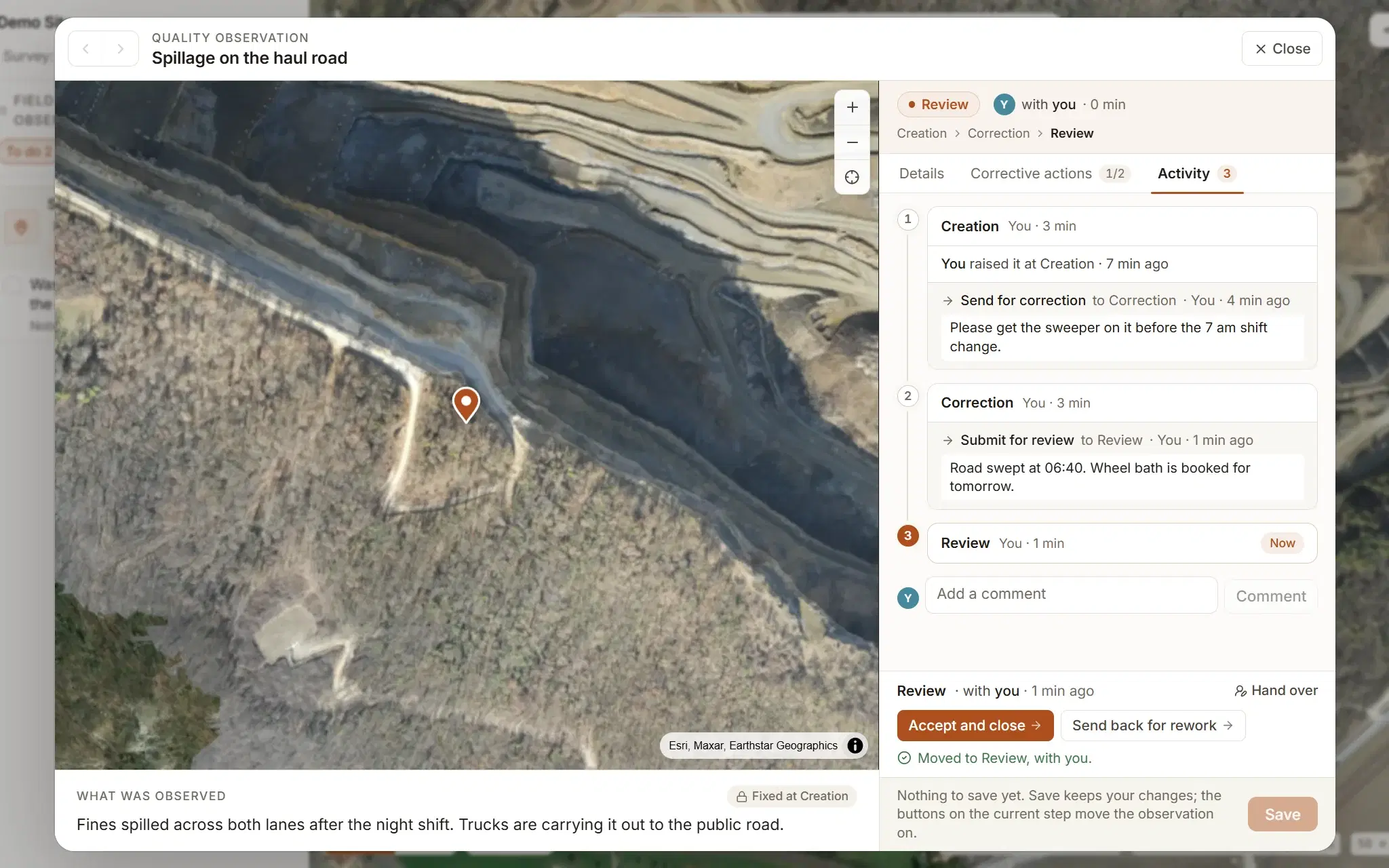
Raised where it was seen.
A punch list, a snag list, a field observation report, a quality surveillance finding: every site has a name for it, and every version starts with someone standing in front of the problem. Clarity starts there too.
The photo is stored as it was shot. Clarity makes a small copy for the lists and leaves the original alone, because a photo of a defect is evidence.
- From a photo
- Take it on the phone, or pick it from the folder you shot this morning. If the camera recorded where it stood, the photo pins itself. An observation raised without one can be given its photo later, the same two ways.
- From the map
- Right-click where the problem is and choose New observation here. No photo needed; add one later if you have it.
- From a measurement
- A point you already measured becomes an observation at the same spot, and the point stays.
- What it accepts
- JPEG, PNG and WebP, up to 50 MB a photo. HEIC is turned away, because a browser cannot display it, with a line saying which iPhone setting to change.
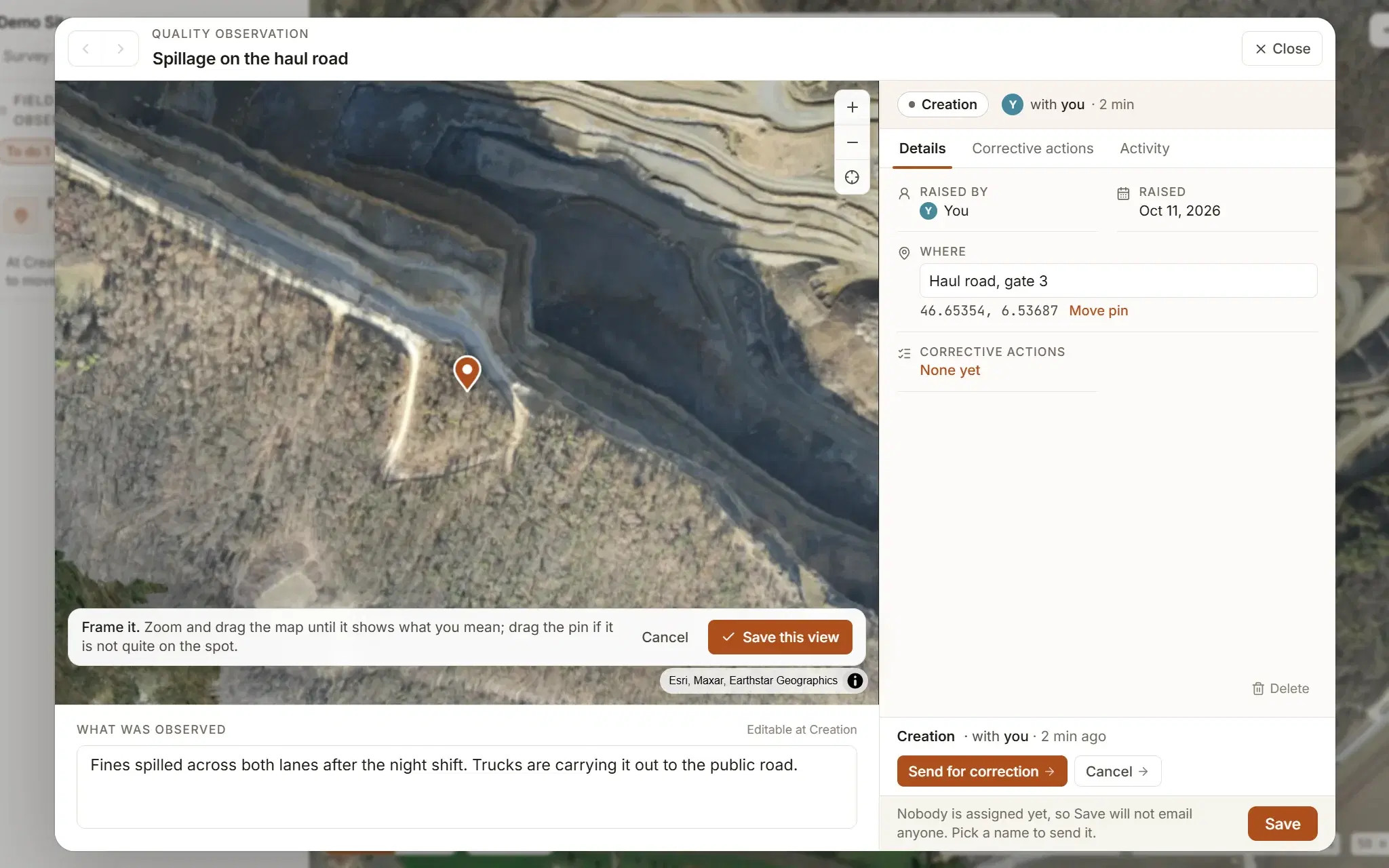
Show what you saw, and where.
An observation opens over the map: what was seen on one side, and where it is, who has it and what has happened on the other. Take a photo, choose several at once, or, with no photo to hand, frame the spot on the map and save that view.
Ring the problem with a pen, arrow or box in five colours. The marks sit over the photo and are never burnt into it. Give it a title, which is what it is called in every list and every email, and describe what was observed underneath. Naming the place is optional; the coordinates are filled in.
Observations belong to the site, not to one flight. Fly it again next month and the same pins are on the new map. How flights of one site are compared.
Your steps, your arrows.
Every organisation starts with the workflow below, and nothing can be raised until an administrator has set it up: as it is, or redrawn. The steps an observation waits at, the buttons that move it on, and where a send-back goes are theirs to decide.
The ready-made workflow. Dark boxes are where an observation starts and where it can end. A star means the button asks for a comment.
Boxes are steps
Add a step, name it, and say who holds an observation while it waits there: whoever raised it, a person you name, or whoever the sender picks.
Arrows are buttons
Drag from one box to another to add an action. Its label is the button people press. Mark it as needing a comment when a reason must be written down.
Published, then live
The designer refuses a workflow that could strand an observation: no start, no end, a step with no way out. Until one is set up, observations are switched off; publish, and they follow it.
An observation keeps the version of the workflow it started on, so changing the steps on a Tuesday does not strand the ones already half-way through. Only administrators see the designer; everyone else sees the steps their observations are at.
Who has it, and what happened.
Under the photo, the observation says which step it is at, who has it and since when, and shows the buttons that step allows to the person allowed to press them.
- The person holding it moves it on. An administrator can too, and can hand it to somebody else without moving it, with a note to say why.
- When the next step is held by whoever the sender picks, the button asks who, and suggests whoever had that step last, so a send-back for rework returns to the crew that did the work.
- The person it goes to gets one email naming the step and carrying the comment written with the move, and a note in their Inbox.
- Every move, hand-over and comment is kept in order with the name and the time, under the observation. Anyone on the site can add a comment; the person holding it is told in their Inbox.
- A closed observation can be reopened by a surveyor or an administrator, and can say why. It goes back to the first step, with whoever raised it.
Corrective actions with a name and a date.
The observation says what is wrong. Corrective actions say what is being done about it: as many lines under it as the job needs, each with a person and a due date.
- Anyone in your organisation can be given a corrective action, whatever their role. They do have to be on the site to open it.
- Press Save and they get one email with everything you just gave them: the lines, who gave them, the site, a thumbnail of the photo and a link that opens it on the map once they have signed in.
- A line past its due date is marked overdue. Remind sends another email, and the row shows when it was last chased.
- Tick a line off and it asks what was done. The answer stays with the line and is cleared if it is reopened.
- Each line carries its own photos, of what was found and of it done: chosen from the phone or the computer, or taken with the camera there and then. The person the line was given to can add them whatever their role.
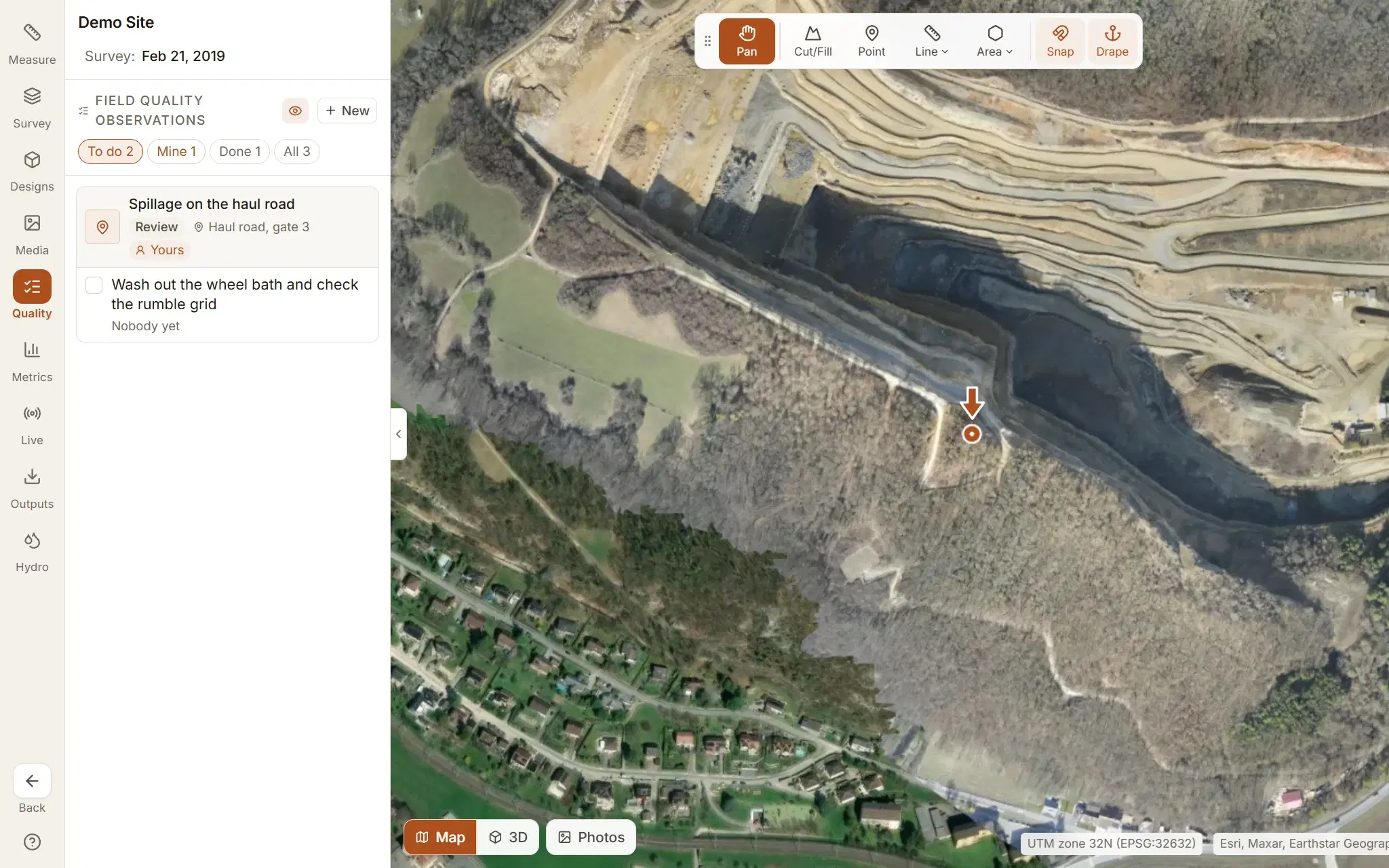
The Quality tab is the list for the whole site: To do, Mine, Done and All, each observation with the step it is at. Every row opens its photo at the pin.
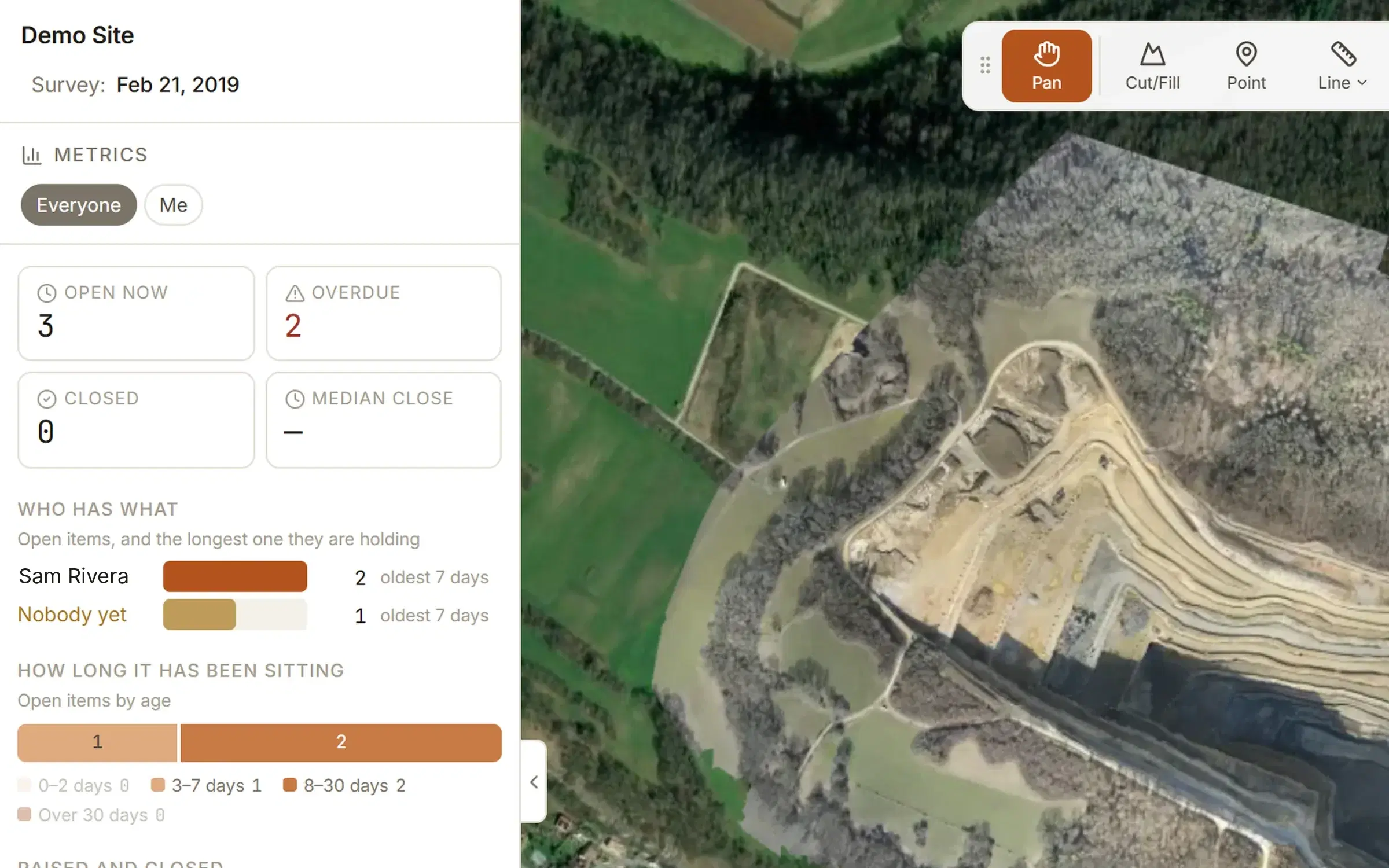
The Metrics tab counts the same rows on screen: what is open, what is overdue, how long items take to close and who is holding them.
The punch list leaves as an Excel workbook.
However good the screen, the list ends up as a spreadsheet somebody prints. So Clarity writes the spreadsheet.
- Covers
- Every observation and corrective action on the site
- Order
- Open first, soonest due at the top
- Working columns
- Item, status, workflow step, person, due, overdue, days open
- For the record
- Who raised it, and when it was assigned, chased and closed
- Where
- Latitude, longitude and a link back to the photo
- Second sheet
- Totals, median days to close, a count per person
Overdue and days open are formulas, so the file is still right when it is opened next week. The pictures are not in the file: each row links to its photo, and the link needs a Clarity login with access to the site. Exporting is part of Studio and Enterprise. Everything that can be exported.
Who can do what, and what it costs.
The limits, said here rather than left for you to find after sign-up.
Raising observations, adding photos and writing corrective actions are for surveyors, admins and owners. A viewer reads the list, comments, and moves on an observation that is with them.
A person has to be in your organisation before anything can be given to them. On Studio they are invited by email and there is no charge per person, so a subcontractor who only needs to fix and submit their own items can be a viewer.
A read-only share link opens one flight and its measurements. It does not show observations; those stay inside the organisation. Photos are held in private storage under your organisation, and only people who can see the site can open them. How sites are kept apart.
On Explore, free, the ready-made workflow is set up as it is, and observations run through it on the demo quarry. Explore is one person, so the only name to hand one to is your own, and nothing leaves as a file. Designing your own workflow, your own sites, your crew and the workbook are Studio: $50 a month for up to five sites. What each plan includes.
Questions people ask.
More on running a punch list from the survey in the guide, and on planned checks in quality surveillance.
- What is a field quality observation?
- A record of something seen on site that does not meet the drawings, the specification or the standard of work: a cracked kerb, a missing tie, standing water on a finished pad. It carries a photo, where it is, what is wrong, who is putting it right and what happened, so that it can be followed to closed and found again later.
- Is this a punch list app?
- It does the job of one. Every observation has somebody holding it, every corrective action under it has a person and a due date, the list for the site filters to what is yours or still to do, and the whole list exports as an Excel workbook. The difference is that every item sits on the drone survey where it was found, and it moves through review steps your team decides on instead of a single done box.
- Can we use it for quality surveillance?
- Yes. Surveillances are scheduled for a date and an inspector, answered against a checklist on site, and moved through a surveillance workflow of their own. Any Unsatisfactory line is raised as an observation with one button, routed through this workflow to whoever corrects it and back to quality for verification, and the observation log exports to Excel.
- Can we design our own approval workflow?
- Yes, on Studio and Enterprise. An administrator draws the steps an observation waits at and the arrows that move it, names the buttons, says who holds it at each step and which moves need a comment, then publishes. Nothing can be raised until an administrator has set a workflow up, as it is or redrawn. Observations already under way finish on the version they started on. Only administrators see the designer.
- Who gets told when an observation moves?
- The person it moves to. They get one email naming the step it is now at and carrying the comment written with the move, and a note in their Inbox in the app. Comments on an observation go to whoever is holding it, in the Inbox only.
Raise one on the demo quarry first.
The demo site is in every new account, free, with the ready-made workflow one click from switched on. See pricing for your own sites.